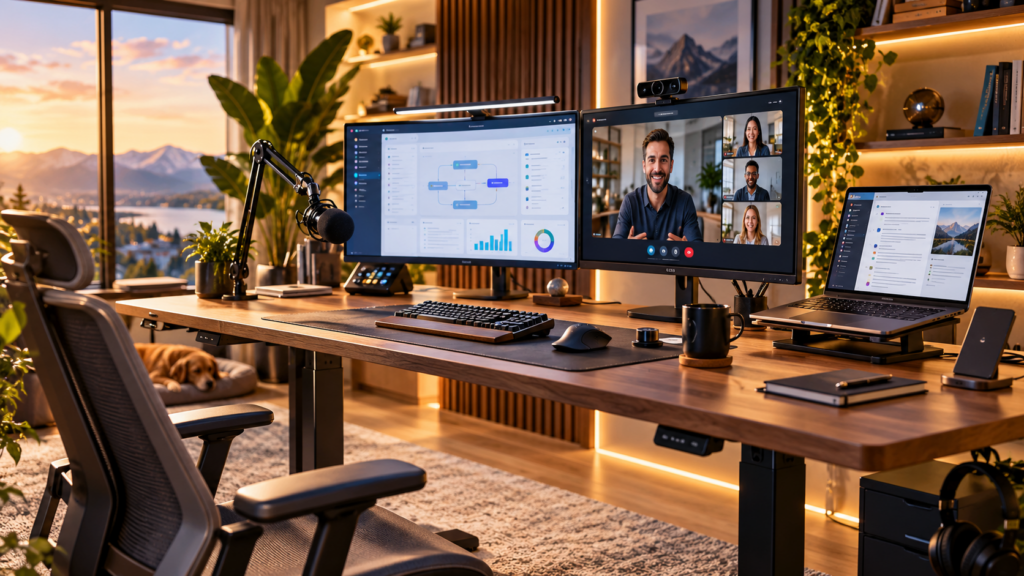

There are probably several million articles on the internet showing somebody’s “perfect home office”. Most of them contain a beautiful desk, an expensive monitor, a mechanical keyboard, a plant that somehow never dies and, increasingly, enough indirect RGB lighting to land a small aircraft. I have contributed to this myself. A few years ago I wrote about my own home office setup, including everything from the desk and monitors to the camera, microphone and some of the smarter bits around the room.
But looking at the subject again from the perspective of a Solutions Consultant, I think the interesting question is slightly different. It is not really what equipment should I buy? It is what does my workspace need to allow me to do? A developer, an accountant and a Solutions Consultant may all work eight hours from exactly the same room, yet the ideal setup for each of them can be completely different. As an SC, I might spend one hour in an internal meeting, the next doing customer discovery, then deliver a live product demonstration, troubleshoot something with a colleague and finish the afternoon presenting to a larger audience. Sometimes all of that happens without leaving the chair.
That makes the home office part workplace, part demo environment and part miniature broadcasting studio. And that changes where I would spend my money and attention.
Build around the job, not around the desk
The first thing I would do is forget about individual products for a moment. For a Solutions Consultant, a good setup needs to solve a handful of very practical problems. I need enough screen space to run a demo without constantly rearranging windows. I need to see the people I am talking to while sharing content. Customers need to hear me clearly, and preferably see me clearly too. I need to be able to switch between applications without creating awkward pauses. And because I might spend many hours in that environment, it has to remain physically comfortable.
This was already the logic behind my previous setup. I used two large external displays plus the MacBook screen, which gave me enough space to separate what the customer was seeing from everything I needed behind the scenes. The exact hardware is less important than the principle. One screen is possible, of course, but as soon as you regularly demonstrate software it becomes unnecessarily restrictive. With two or three screens, one can contain the actual demo or presentation, another the meeting and customer video feeds, and the remaining space can hold notes, Teams or Slack, demo credentials, a timer, a browser session or whatever else you need without exposing it to the customer.
There is another advantage that is easy to underestimate: multiple displays reduce cognitive friction. During a demo I do not want to think about where I left the meeting controls or whether opening my notes will suddenly appear in the screen share. I want my attention on the customer. The technology should disappear into the background.
Your camera is part of the conversation
For customer-facing Solutions Consultants, I consider the camera an important part of the setup rather than an optional accessory. We ask questions, react to answers, read the room, explain complicated things and occasionally try to recover gracefully from a demo that has decided to develop a personality of its own. A lot of that interaction becomes easier when people can actually see each other.
I wrote about this in much more detail in my article on seven simple tips for good, engaging video conferences. One of the recommendations from that article still matters just as much today: position the camera around eye level and look into it when you are actually addressing the other participants. The slightly strange thing about video conferencing is that looking at somebody’s face on your screen and looking them “in the eye” are technically two different things. The closer your meeting window is to the camera, the less noticeable the difference becomes.
This is also why I prefer an external camera that can be positioned independently of the laptop. Resolution is not the main reason. You rarely need a spectacular 4K image of yourself compressed into a small rectangle in a Teams meeting. What matters much more is a camera that handles lighting well, produces a clean picture and can be placed exactly where it needs to be.
Framing matters too. I would not zoom so tightly that only my face fills the screen. Solutions Consulting involves explaining things, and I tend to use my hands when I talk. Having enough of the upper body visible allows some of that body language to survive the journey through the webcam. It also feels more natural than speaking to a floating head.
Spend more attention on audio than most people do
If I had to choose between excellent video with poor audio and average video with excellent audio, I would take the good audio every time. Customers can tolerate a webcam that is not cinematic. Listening to distorted, echoing or constantly cutting-out speech for an hour is a very different matter.
In my older setup I used a RØDE NT-USB microphone on a low-profile arm. That was partly because the room itself had some echo and partly because I wanted consistent sound for meetings and larger presentations. A dedicated microphone is not mandatory, and a good professional headset can be an excellent solution, particularly in a noisier room. What I would avoid for important customer conversations is blindly relying on whatever microphone happens to be built into the laptop without ever listening to what it actually sounds like.
The easiest test costs nothing. Record yourself. Listen with headphones. Type something while you speak. Move slightly away from the microphone. Turn your head. If the result suddenly sounds as if you are presenting from inside a railway station, you know what needs attention. Software-based noise reduction has become remarkably capable as well, but I still prefer giving it a reasonably clean signal to work with rather than expecting software to rescue bad acoustics.
Lighting should make you visible, not dramatic
Lighting is another area where surprisingly little can make a big difference. You do not need to turn the office into a television studio. You need your face to be clearly visible without harsh shadows and without a bright window turning you into a silhouette.
Natural light from somewhere in front of you or slightly to one side is excellent when you have it. Unfortunately, sunlight has the irritating habit of moving around during the day, and winter in Germany is not exactly famous for providing reliable studio illumination. That is why I eventually added dedicated lighting to my own setup. Even a relatively simple soft light near the camera gives you consistency between a call at 9 in the morning and another one late in the afternoon.
There is a practical detail here for anybody wearing glasses: test the angle. A light directly reflected in your lenses can make your eyes almost disappear, particularly with larger ring lights. Move the light slightly higher, further to the side or both until the reflection is gone. This is exactly the kind of tiny adjustment that takes two minutes once and then quietly improves hundreds of meetings afterwards.
The background does not need to be boring
I have never been a huge fan of artificial virtual backgrounds for normal customer conversations. They can be useful, particularly when you are travelling or have no control over the room, but in a permanent home office I prefer a real background. It feels more natural, does not occasionally eat parts of your ears or headset, and gives you more control over what the overall picture looks like.
That does not mean the room has to look like a corporate reception area. It is still your home. I would rather see a well-organised bookshelf, a plant, a couple of relevant objects or something that tells me a little about the person than a completely sterile wall. The important part is that the background does not compete with you. A pile of laundry, an open cupboard or people continuously walking through the picture will attract attention whether you want them to or not.
The same applies to background lighting. A little separation between you and the wall can give the image more depth, and if you already have smart lighting there is nothing wrong with using it. Just remember that this is a customer call rather than a Twitch stream. If people spend the first five minutes trying to work out why your office is pulsing purple, something has probably gone slightly wrong.
A standing desk is especially useful for presales
Of all the furniture choices I made for my own office, the motorised standing desk turned out to be one of the most useful. Obviously there is the ergonomic benefit of being able to change position instead of remaining in the same chair all day. For an SC, though, there is another reason I like it: presenting while standing feels different.
If I am delivering a webinar, presenting to a larger group or running a session where I need a little more energy, I often prefer to stand. I move more naturally, gestures become easier and it feels closer to presenting in a physical room. I would not stand through eight hours of calls, just as I would not deliberately sit through eight hours without moving. The useful part is being able to switch between the two without changing the rest of the setup.
That also means the camera, microphone, displays and lighting need to work in both positions. This is worth considering before mounting everything permanently. A beautiful camera angle while sitting is not much use if raising the desk later gives your customer a detailed view of your neck.
For demos, reliability beats elegance
This is probably the least photogenic part of a home-office article, but for a Solutions Consultant it may be the most important. Your network connection matters more than the desk colour.
If I have the choice, my primary work setup is connected by Ethernet rather than relying entirely on Wi-Fi. Modern wireless networks can be excellent, and in many homes they are completely sufficient, but live software demonstrations are already complicated enough without voluntarily adding another variable. A wired connection removes one source of uncertainty.
I also like having a docking station that turns the laptop into the centre of the whole setup with one cable. Displays, Ethernet, USB devices, power and peripherals can remain connected permanently while the computer itself stays portable. That matters because an SC laptop rarely spends its entire life on the desk. One day it is driving three screens at home, the next it is in a customer meeting or a conference room.
And then there is the backup plan. A good demo environment should not depend on a single fragile chain of technology. Knowing how to switch to a mobile hotspot, having a second browser ready, keeping essential demo material locally available where appropriate, and understanding what you will do if the actual demo environment fails are not really home-office features. They are presales features. The best equipment in the world does not compensate for having no Plan B.
Make interruptions visible before they happen
Working from home also means sharing a building with people who quite reasonably have no idea whether you are reading email or presenting a six-figure solution to a customer. One of the slightly nerdier parts of my previous office solved exactly that problem. I connected a Hue light strip in and outside the office and used it as a kind of traffic light so my family could see whether it was a good moment to come in. I plan on writing on my exact setup shortly.
You absolutely do not need Home Assistant and coloured smart lights to accomplish this. A closed door, a small busy light or simply an agreement with the other people in the house can do the same thing. But some visible signal helps. Muting yourself while somebody walks into the room to ask where the scissors are works technically, but it is not a particularly elegant part of a customer experience.
The pre-call routine is part of the setup
There is one piece of the perfect home office that you cannot buy: the two minutes before the meeting.
Before an important customer call, I want to know that I joined with the correct microphone, that the camera framing still makes sense, that the light is on, that I am sharing the intended display and that no confidential Slack conversation is sitting behind the browser window I am about to demonstrate. I also want the demo logged in and ready before the customer arrives whenever possible.
This was already one of my recommendations when I wrote my video-conferencing article back in 2020: do the checks before entering the meeting rather than making everybody else watch you perform them. Six years later I would make that advice even stronger for Solutions Consultants. A well-prepared demo often feels effortless to the customer precisely because quite a lot happened before they joined.
So what would I prioritise?
If I were building an SC home office again from nothing, I would not start by buying the fanciest individual product. I would first create a quiet, comfortable workspace with a desk that gives me enough room and lets me change position. Then I would make sure the internet connection is solid. After that I would invest in enough display space to present and still see the customer, followed by good audio, a properly positioned camera and consistent lighting. Only then would I start worrying about the gadgets.
And there will always be gadgets. That is half the fun…
My older home-office article contains the specific hardware I used in that version of my office, and my article on engaging video conferences goes deeper into camera positioning, lighting, audio and online-meeting etiquette. Some of the products have inevitably aged since those articles were written, but the underlying ideas really have not changed much.
The perfect home office for a Solutions Consultant is ultimately the one that removes friction between you and the customer. You should not be thinking about your microphone, your network, your camera or which screen contains the demo. You should be listening to the person on the other side, understanding what they are trying to solve and showing them something useful. If the office helps you do that consistently, it is doing its job.