
Somewhere in our household’s digital archive, there’s an invoice for an appliance we bought a few years ago. There’s also an insurance policy, a warranty certificate, a letter from our daughter’s school and probably a PDF containing some important information I was absolutely certain I would remember when I downloaded it.
I’m reasonably confident that all these documents are stored somewhere. Finding the right one, however, used to be a completely different story.
Like many people who enjoy technology, I’ve spent quite some time building a reliable digital infrastructure at home. We have a Synology NAS, backups, a reasonably sophisticated home network and more Home Assistant automations than my family probably wants to know about. Yet for years, my approach to archiving important documents was surprisingly old-fashioned: create a folder, give a file a sensible name, put it in the right place and hope I remember where I put it.
It worked. Well, mostly. But eventually I started wondering why I was still spending time doing something that software should be perfectly capable of handling for me.
Why Digital Document Management Matters, Even at Home
When people talk about document management systems, they usually mean business software. Invoices, contracts, compliance requirements and workflows involving multiple departments. It sounds like something that belongs in a corporate IT environment rather than in a normal household.
But think about the documents a family accumulates over the years. Insurance policies, tax records, employment contracts, invoices, warranties, bank statements, medical correspondence, energy bills, vehicle documentation and all sorts of administrative paperwork. Add a child to the equation and you can include school correspondence, registrations, certificates and plenty of documents you might need again several years later.
The interesting thing is that many of these documents never existed on paper in the first place. They arrive as email attachments, downloads from customer portals or PDFs generated by online services. Even the occasional physical letter is increasingly something I want to scan and store digitally. Nevertheless, the responsibility for keeping everything organised hasn’t disappeared. The filing cabinet has simply moved onto our computers.
And while losing a random shopping receipt might be mildly annoying, losing an important contract or struggling to find the documentation you need for an insurance claim is another matter entirely. For me, good document management comes down to two things: knowing that our documents are safely stored and being able to find them without spending half an afternoon searching.
I wanted an archive that would still make sense five or ten years from now, even if I couldn’t remember the original filename, the folder structure or the date when I received something. Ideally, I wouldn’t have to think about organising the documents in the first place.
My Previous Solution: Synology Drive and a Lot of Folders
For quite some time, I used Synology Drive as my primary document archive. If you’re unfamiliar with it, think of it as a self-hosted alternative to Dropbox or Google Drive. Files live on your own Synology NAS, with synchronisation and access from different devices. Since I already had the NAS and used it for various other purposes, this was a natural choice.
There was nothing fundamentally wrong with that setup. Synology Drive is perfectly capable of storing files, and I liked having control over where our data lived. The problem was everything that happened before a document ended up in its final destination.
Every document needed a filename. Ideally, that filename should contain something useful, like a date, company name or document description. Then I had to decide where the file belonged. Was an invoice for a new heating component something for the household folder, the energy folder, the warranty folder or the tax folder? Sometimes more than one location seemed reasonable.
And of course, folder structures have an annoying tendency to evolve. What made perfect sense when you created it becomes slightly less logical after adding another few hundred documents. Eventually, you either reorganise everything or accept that your filing system has become a collection of historical decisions made by different versions of yourself.
Searching was the other problem. Many PDFs already contain searchable text, but scanned documents often don’t. A PDF generated from a photograph or a physical letter can essentially be a collection of images. If the information you’re looking for isn’t included in the filename, finding that document can become surprisingly difficult. Synology Drive has search functionality, of course, but a conventional file archive isn’t quite the same thing as a dedicated, OCR-powered document management system.
What bothered me most wasn’t the time required for any individual task. Naming a document takes a few seconds. Moving it into a folder takes another few seconds. But multiply those little interactions across years of household administration, and they become a recurring chore that adds absolutely nothing to my day.
That’s when I came across Paperless-ngx.
Discovering Paperless-ngx
Paperless-ngx is an open-source document management system designed to turn physical and digital documents into an organised, searchable archive. You can run it on your own hardware, upload documents through a browser, import them from folders or retrieve attachments from an email account.
The really useful part happens after a document arrives. Paperless-ngx extracts text from digital documents and uses optical character recognition (OCR) when it encounters scanned pages or images without a text layer. It indexes the content so you can search for words and information inside documents rather than relying exclusively on filenames. It can also associate documents with correspondents, document types, tags and storage paths, using matching rules or its built-in automatic classification capabilities.
Consider an electricity bill. Previously, I would have downloaded the PDF, renamed it, navigated through my directory structure and placed it in the appropriate folder. With Paperless-ngx, I can simply send it to the system. It processes the document and makes its contents searchable. Later, I can look for the electricity provider, an invoice number or some specific information from the bill without remembering what I called the file.
That sounded a lot closer to what I actually wanted. I didn’t need another place to store PDFs. I already had one of those. I needed software that understood enough about my documents to make storing and retrieving them less work.
Being self-hosted was another major advantage. I didn’t particularly want to upload years of personal correspondence, financial records and family documents to another commercial cloud storage service. I already trusted my Synology setup, had an established backup strategy and preferred to keep the archive under my own control.
And because I enjoy experimenting with small servers and self-hosted applications, the idea of running it on a Raspberry Pi was rather appealing. A small computer doing the work, my existing NAS providing the storage and a browser interface available throughout the household. That sounded like a good project.
Installing Paperless-ngx on a Raspberry Pi
The installation itself is relatively straightforward if you’re already comfortable with Raspberry Pi OS, Docker and Docker Compose. I won’t reproduce every command here because the official installation documentation does a good job of explaining the standard setup. Instead, I’ll concentrate on how I connected Paperless to my existing infrastructure and a couple of details worth paying attention to.
My setup consists of a Raspberry Pi running Paperless-ngx in Docker, a Synology NAS providing document storage over NFS and several supporting containers. PostgreSQL handles the database, Redis provides the message broker, while Apache Tika and Gotenberg support additional document formats and conversions.
I deliberately separated the application from the document storage. The Pi does the processing and runs the web interface. The NAS stores the archived documents and the associated Paperless files. That means I’m not depending on the Raspberry Pi’s own storage capacity for our growing document collection, and I can incorporate the archive into the backup processes I already use for the Synology.
Connecting the Raspberry Pi to the Synology NAS
The first step was creating a dedicated shared folder for Paperless on the Synology. I enabled NFS access in Synology DSM and granted the Raspberry Pi permission to access that share. On the Pi, I mounted the share under /mnt/paperless and configured it through /etc/fstab so the mount could be restored after a reboot.
The most time-consuming part was getting the permissions right. Paperless runs inside Docker, but the files are ultimately written to a remote filesystem controlled by Synology. The user and group identities used by the containers therefore need appropriate access to the NFS share. In my original setup, I used NFSv3 and adjusted the Synology NFS permissions until the containers could successfully create and modify files. If you’re building this yourself, verify write access from the actual container user rather than assuming that a successful mount means everything is working.
Once the mount was working, I mapped Paperless’s data, media, consume and export directories to corresponding locations on the NAS. Here’s the relevant part of the Docker Compose configuration, with one additional setting that is particularly useful for network storage:
# Inside the Paperless service in docker-compose.yml

environment:
  PAPERLESS_CONSUMER_POLLING_INTERVAL: 30

volumes:
  - /mnt/paperless/data:/usr/src/paperless/data
  - /mnt/paperless/media:/usr/src/paperless/media
  - /mnt/paperless/consume:/usr/src/paperless/consume
  - /mnt/paperless/export:/usr/src/paperless/export
The polling setting deserves some explanation. Paperless normally detects new files through filesystem notifications. Network filesystems such as NFS don’t always provide these notifications reliably. Setting PAPERLESS_CONSUMER_POLLING_INTERVAL to a positive value makes Paperless check the consumption directory periodically instead. The example above uses 30 seconds. It’s a small configuration detail, but an important one if your workflow depends on files arriving automatically from a scanner or another system. See the Paperless configuration documentation for details.
There is another point worth mentioning: my PostgreSQL database is stored locally on the Raspberry Pi, rather than on the NAS. That’s intentional in terms of the storage layout, but it also means the Synology backup alone is not sufficient to recover the complete Paperless installation. The database contains important metadata and relationships, so it needs to be backed up separately, together with the archived files. It’s also worth ensuring the NFS share is actually mounted before Docker starts Paperless, to avoid accidentally writing data into an empty local mount directory when the NAS is unavailable.
After preparing the storage, I created the Docker Compose configuration and environment variables, started the containers and created the Paperless administrator account. The web interface became available through the Pi on port 8000. From there, I could begin importing documents and defining the initial document types, correspondents and tags.
I also configured Paperless to use a meaningful filename format based on information such as the document date, correspondent and title. Although the Paperless interface is how I normally access the archive, having a logical underlying file structure provides an additional degree of transparency. I like knowing that the files aren’t trapped inside some proprietary storage format.
At this point, I already had a significant improvement over my previous Synology Drive approach. Documents were searchable by content, and the system was taking care of much of the processing automatically. But I wanted to go further. Searching through documents was solved. What about eliminating the need to classify and name them manually?
Taking It Further With Paperless-ngx’s Built-In AI
This is where my professional curiosity came into play.
As a manager in Solutions Consulting, I spend quite a bit of time thinking about how technology changes the way we work. Artificial intelligence is an obvious part of that discussion, particularly when it comes to reducing repetitive work, improving access to information and giving people more time for activities that actually require human attention. I find the technology interesting in its own right, but I’m much more interested in practical applications than in adding AI to something simply because it’s fashionable.
Document archiving seemed like a perfect candidate. I had already automated getting a document into the system and extracting its text. But I still wanted to improve how the system recognised and classified what it received. Could an AI model determine that a document was an insurance statement, identify the sender, create a sensible title and assign the appropriate tags without me doing that work manually?
What makes the newer versions of Paperless-ngx particularly interesting is that AI functionality is now integrated directly into the application. There’s no need for a separate document classification service. Paperless-ngx can communicate with a language model, analyse a document’s contents and suggest meaningful metadata based on what it finds.
It’s worth distinguishing the different technologies involved, because they solve different problems. Paperless-ngx already uses OCR to make scanned documents searchable. It also has a built-in machine-learning classifier that learns from previously classified documents and can automatically match correspondents, tags, document types and storage paths. The newer LLM-powered features add another level of interpretation. They can examine the extracted content and suggest a descriptive title, relevant tags, a correspondent, document type, storage path and document date.
Imagine receiving a PDF with a filename like document_2026_10_12345.pdf. The AI can analyse the contents and recognise that it is an insurance renewal, identify the insurance company, suggest an appropriate document type and create a descriptive title. Instead of manually deciding how every document should be classified, I can have Paperless do much of that work.
For someone who previously spent years maintaining an increasingly elaborate folder structure, this is a rather satisfying development.
Enabling AI Directly in Paperless-ngx
The native AI functionality is optional and disabled by default. Paperless-ngx doesn’t magically include a powerful language model running on the Raspberry Pi. Instead, it provides an integration with an AI backend that you configure yourself.
The application supports OpenAI-compatible APIs as well as locally hosted models through Ollama. Which option makes sense depends on your hardware, privacy requirements and whether you are comfortable using an external AI provider. A Raspberry Pi is perfectly capable of running Paperless-ngx, but running a larger language model efficiently is another matter. Fortunately, the model doesn’t need to run on the same machine as the document archive.
In current Paperless-ngx versions, the relevant settings can be managed through Settings → Application Configuration or supplied as environment variables. At a minimum, AI needs to be enabled and a compatible backend, model and endpoint configured. An external provider may also require an API key. The configuration options are documented in the official AI configuration reference.
Once configured, the document detail view offers AI-assisted suggestions. Paperless can combine these with suggestions from its existing machine-learning classifier. That means the system can use the patterns it has learned from my archive while also asking a language model to interpret the actual document contents.
That combination is particularly useful for a personal archive. Some documents are repetitive and easy to recognise. Electricity bills from the same provider, for example, usually follow similar patterns. Others are completely new, from companies or institutions I haven’t dealt with before. A content-aware AI model is particularly interesting for those unfamiliar documents, where the existing classifier might not have enough examples to make a confident prediction.
Making the AI Classification Automatic
Having Paperless suggest a title or a document category is useful, but I didn’t want to open every document just to approve a collection of suggestions. That would replace one manual step with another. My goal was to make document processing as automatic as possible.
Fortunately, Paperless-ngx now offers a native workflow action called Apply AI Suggestions. This is an important distinction: simply enabling the AI integration makes suggestions available, but configuring a workflow allows them to be applied automatically.
For example, a workflow can be triggered when a new document is added. Once Paperless has extracted its text, the workflow can ask the configured language model to analyse it and apply selected suggestions to the document metadata. I can choose whether the AI should update titles, assign correspondents, add tags, determine document types or suggest dates and storage paths.
There are sensible controls around this. I can decide whether existing metadata should be overwritten, whether unknown correspondents or document types should be created automatically and which fields the AI is allowed to modify. That matters because an AI model isn’t guaranteed to be correct. Without some constraints, an enthusiastic classifier could easily create more categories than I ever wanted in the first place.
In practice, the process I wanted is now possible within Paperless itself: a document arrives, OCR makes its contents searchable, the existing classifier and configured AI workflow help assign metadata, and the document becomes part of the archive. The AI processing runs asynchronously, so it doesn’t need to hold up the initial import while the model generates its response.
I still occasionally review documents, especially important contracts or paperwork where an incorrect date or classification could cause confusion later. But correcting something that has already been suggested is a lot less work than starting from scratch every time.
The Paperless workflow documentation explains the available controls and how the automatic AI suggestion action works.
And Then There’s the Possibility of Talking to Your Documents
Another interesting addition is the ability to ask questions about archived documents. Paperless-ngx supports a document chat feature and semantic document retrieval using embeddings and a vector index. With the appropriate configuration, the system can retrieve relevant information from stored documents and use it when responding to a question.
Imagine being able to ask when an insurance contract expires, what the warranty period for an appliance is or which documents mention a particular company. That’s a rather different experience from remembering filenames or constructing search queries. The underlying technique is known as Retrieval-Augmented Generation, or RAG, where relevant information from documents is retrieved and provided as context to the language model.
It’s worth mentioning that this requires additional configuration of an embedding backend and the document index. It isn’t automatically enabled just because AI classification is switched on. And like any AI-generated response, the results need to be checked against the source documents, particularly when important dates, amounts or contractual details are involved.
For me, though, it’s an interesting indication of where personal document management is heading. The archive isn’t limited to storing and searching files anymore. It can increasingly help interpret the information within them.
A Word About Privacy
Of course, using AI for personal documents brings up an important question: where does the information actually go?
The fact that Paperless-ngx runs locally on my Raspberry Pi doesn’t automatically mean that every AI operation stays within my network. If I configure an external AI service, document contents and relevant metadata may be transmitted to that provider for analysis. Depending on the service, there may also be API usage costs.
That’s a decision worth making consciously, especially with financial records, medical correspondence or documents containing information about children. Paperless supports locally hosted AI backends, so it’s possible to keep inference within infrastructure you control, provided you have sufficient hardware. With external services, I would pay close attention to the provider’s data handling policies and configure the workflows accordingly.
For me, the important thing is that these features remain optional and configurable. The regular OCR, document storage and conventional machine-learning classification don’t require an external AI provider. The additional LLM capabilities are something I can enable where they provide a useful benefit.
Getting Documents Into Paperless Without Thinking About It
Having a well-organised document archive is useful. But there’s a catch: somebody still has to put the documents into it.
I’ve learned from building our smart home that an automation becomes genuinely useful when it removes interaction rather than just moving it somewhere else. If I have to open a separate application, navigate through several screens and manually upload every document, I’ve only solved part of the problem. I wanted Paperless to become part of our everyday household routines without requiring everyone to understand how it works.
Fortunately, I already had another project that fitted into this nicely.
One Button at the Scanner
In a previous article about making my scanner actually smart with Home Assistant, I described how I transformed our multifunction printer into a one-button scanning system using eSCL, Zigbee buttons and Home Assistant automations.
The original problem was quite simple. Our printer could scan documents, but navigating its touchscreen, selecting a destination and dealing with the different scanning options was unnecessarily complicated. It was complicated enough that scanning often became my responsibility, simply because I was the person willing to operate the thing.
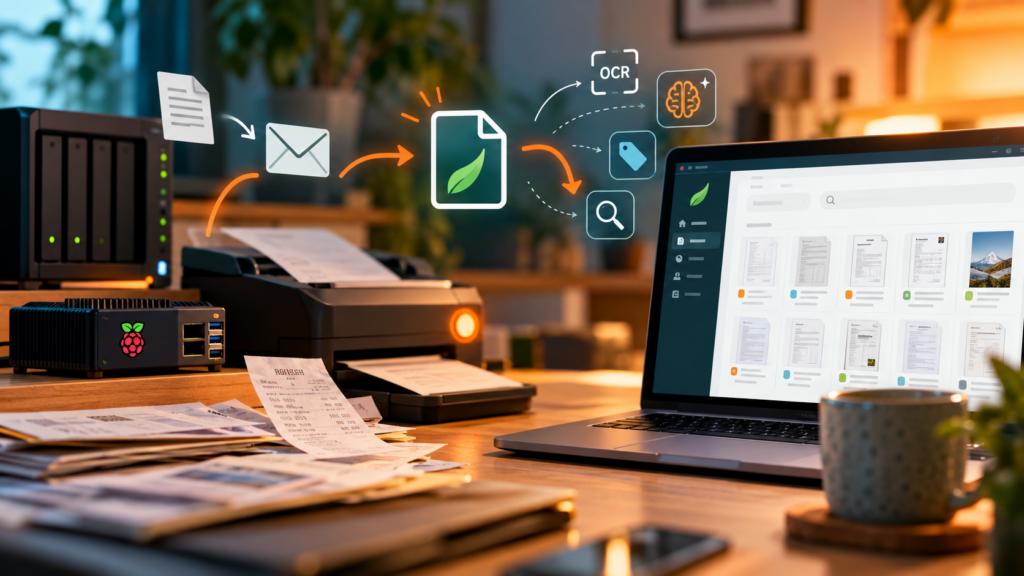
Now, one of the physical buttons next to the printer sends a document directly to Paperless-ngx. Put the paper into the document feeder, press the button and that’s it. Home Assistant checks whether the printer is powered on, switches it on through a smart plug if necessary, starts the scan and saves the resulting PDF to the Paperless consumption directory on our network storage.
Paperless picks up the document, performs OCR if needed and adds it to the archive. Its native classification and AI workflow can then help assign the appropriate title, correspondent, tags and document type. From the perspective of whoever is standing in front of the scanner, none of those individual steps matter. The paper goes in, the button gets pressed and the document ends up in the archive.
That’s particularly useful in a family environment. My wife and daughter don’t need to understand NFS mounts, Docker containers, OCR engines or any of the other technology involved. They only need to know which button to press. And I no longer have to be the household scanning department.
Email Attachments: Forward and Forget
The second important integration is email. After all, a considerable portion of the documents I want to keep already arrive digitally. Having to download every attachment, find it on my device and upload it to Paperless would be a rather silly way of handling something that was digital from the beginning.
Paperless-ngx includes an email consumption feature that connects to a mailbox and processes attachments according to configurable rules. I use this with a dedicated email destination for archiving documents.
For example, imagine I’m travelling and receive a receipt or invoice by email. Perhaps it’s a parking receipt, something for a household purchase or another document I might need later. Instead of thinking about where to save it, I simply forward the email to the archive address. Paperless retrieves the relevant attachment and imports it. From there, the normal OCR and classification workflow takes over.
The same approach is useful for documents received at home. An insurance company sends an updated policy? Forward it. A PDF invoice arrives from an online shop? Forward it. An attachment needs to be retained for future reference? Forward it. I don’t need to be sitting at my computer, connected to the NAS or even at home. As long as I can forward the email, I can feed the archive.
Technically, Paperless uses configurable mail accounts and mail rules to identify messages and consume supported attachments. You can make this as selective or automated as you like, including monitoring dedicated folders or matching particular senders. The official Paperless documentation explains the email consumer in more detail.
For me, the ability to archive something immediately is particularly valuable. I don’t have to remember to deal with the receipt later, when I’m back at my desk. I can take care of it at the moment it arrives and move on.
Keeping the Archive Under My Control
One of the reasons I originally liked Synology Drive was that our data remained on infrastructure I controlled. Switching to Paperless hasn’t changed that principle. The document files are still stored on my Synology NAS, and Paperless provides the application layer that makes them easier to manage.
My NAS infrastructure already uses Synology’s backup capabilities, including backups to separate storage. That makes it possible to include the Paperless document directories in an established backup routine rather than relying solely on a Raspberry Pi and hoping nothing goes wrong. The important caveat is that the local PostgreSQL database and application configuration also need to be protected. A collection of PDF files is valuable, but a complete, restorable Paperless archive includes its metadata, too.
And as with any self-hosted service holding personal information, access control matters. I don’t want a document archive containing contracts, financial correspondence and family records casually exposed to the internet. Keeping the application updated, limiting access to trusted devices or secure remote connections, protecting credentials and testing backups are just as important as choosing the software itself.
This is one of those situations where self-hosting is both an advantage and a responsibility. I get considerable control over how our information is stored and processed, but I’m also responsible for keeping the infrastructure reliable. Since I already maintain the NAS and home network for other purposes, integrating Paperless into that environment made more sense to me than introducing another cloud subscription.
Less Administration, More Time for Everything Else
It’s quite easy to spend far more time building a home automation than it will ever save. I’ve certainly had projects where getting something to work was at least half the fun. Paperless is slightly different because it addresses an ongoing task that otherwise keeps coming back. Every new invoice, every scanned letter and every document that needs to be retained would previously have required another small administrative effort.
Now, the effort has largely moved into the initial setup. Paperless handles document processing and OCR, its native AI features can help classify and name documents, Home Assistant makes scanning accessible to everyone in the household, and email forwarding takes care of documents that arrive while we’re away. I still maintain the system and occasionally review the results, but the everyday interaction is considerably smaller.
There is something satisfying about searching for a document by what it contains rather than trying to reconstruct where I might have filed it years ago. Even better is knowing that a new document can be added without making yet another decision about folder names and filenames.
From a professional perspective, this is also the kind of AI application I find most convincing. It doesn’t need to do anything spectacular. It takes a repetitive, reasonably well-defined task, handles a good portion of it automatically and leaves me with the ability to correct the outcome when necessary. The value isn’t in how impressive the underlying technology sounds. It’s in how little I have to think about the task afterwards.
And in our household, that’s exactly what I wanted. Less time organising PDFs, fewer questions about where something has been saved and a better chance of finding the right document when we actually need it.
Now I just need to convince the remaining paper documents hiding in drawers and folders to make their way to the scanner.